
CS2 Radar Settings: Full Guide (2026)
In Counter-Strike 2, most of the information obtained during the game comes from what you see and what info your teammates tell you. However, there’s another way of obtaining vital information – the radar.
The radar is a small image of the map, which continuously shows your position and all that's happening during the game. Whenever the enemy makes a step nearby or fires a shot, the radar shows its exact position and whether he’s carrying the bomb or not.
Using the radar in your everyday matches will save you and your teammates time on getting the info necessary for the tactic.
How to Change Radar Commands?
There are three ways to tweak your radar settings.
- First, you can go to Settings, then Game, and then Radar.
- Second, you can write radar commands into the console. Just be sure you've enabled the developer console in the settings.
- Third, you can add the commands to your autoexec config file. This way, your preferred settings will be there every time you start the game.
How to Enable The Developer Console
Although the majority of players change their settings within in-game settings, some people prefer using console commands. Before you start tweaking with your Radar Settings, make sure the Developer Console is on.
Here’s how to turn it on:
- Start the game.
- Go to the Settings.
- Click on the “Game” tab.
- Find the “Enable Developer Console (~)” option.
- Switch it to “Yes”.
Now you are ready to use any command. Here's a quick overview of all Radar commands:
Best Radar Settings in CS2
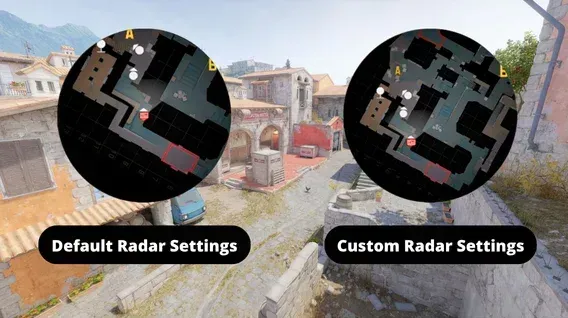
To tweak your radar settings, you need to open Settings, go to the Game section, and proceed to Radar settings. You'll see everything that we'll be changing.
CS2's default radar settings can work in the beginning, and it's a good mix of everything – you're in the map's center, it spins when you move the camera, and the zoom is set just right so you can see clearly. But it's not enough to get as much info as possible.
Radar Centers The Player – NO
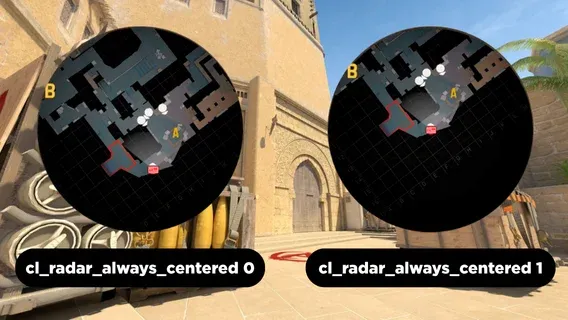
- Command: cl_radar_always_centered 0
This command controls whether your player icon stays in the middle of the radar or moves around.
If you set it to YES/1, which is the default setting, your icon will always be in the center of the radar. However, that is not helpful when you're at the edge of the map. You can get a lot more info when your icon isn't in the center.
Radar Is Rotating – YES
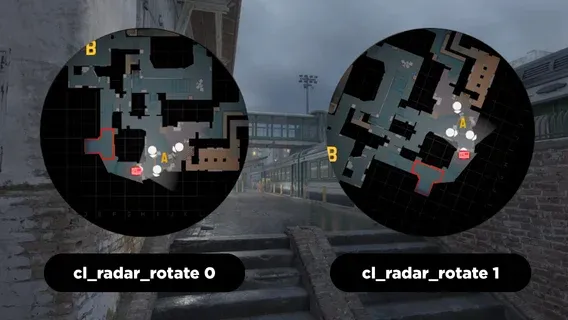
- Command: cl_radar_rotate 1
The cl_radar_rotate 1 command is the only setting that will match the default settings. This makes the radar rotate based on your movement. If you turn around, it will rotate 180°, helping you better understand where your enemies are.
However, sometimes pros set it to NO/0 to have a static radar, which is helpful in planning strategies and calling out enemy positions.
Radar HUD Size – 1.3

- Command: cl_hud_radar_scale 1.3
With this one, you can adjust the size of your radar on your screen. The values vary from 0.8 to 1.3, which can make your radar either tiny or big.
Keep in mind that if you have a radar that's too small, you're not gonna see the details clearly. On the other hand, if your radar is too big, it'll take up too much space on your screen, potentially hindering you from spotting the enemy. A value anywhere from 1 to 1.3 is optimal.
Radar Map Zoom – 0.5
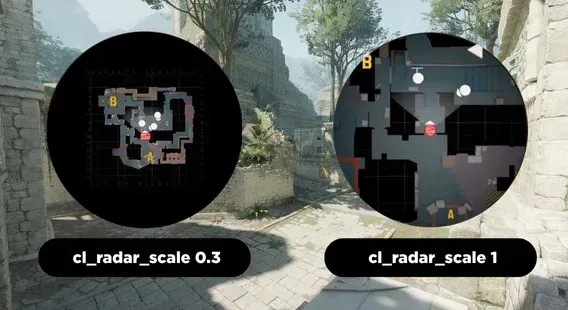
- Command: cl_radar_scale 0.5
If you want to see more of the map on your radar, you can easily adjust the zoom level. Changing the Radar Map Zoom value determines how much of the map is visible, allowing you to find a setting that fits your preferences.
A value of 0.5 is one of the most commonly used settings among CS2 players. It provides a good balance, showing a large portion of the map while keeping important details easy to see.
Cl_Radar_Icon_Scale_Min 1
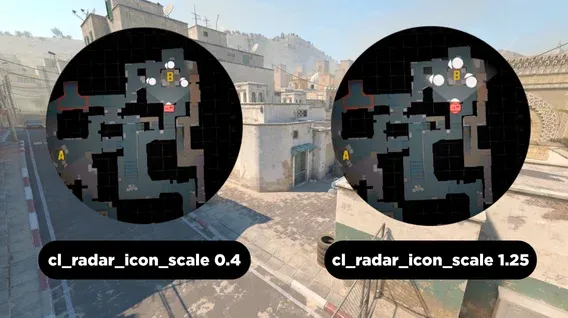
The cl_radar_icon_scale_min command changes the size of player icons, like teammates, enemies, and the bomb, on your radar.
Its value varies between 0.4 and 1.25, but there's no "best" value for this one. It depends more on your personal choice. Nevertheless, setting it to 1 will give you an optimal icon size.
Other Radar Settings
While we mentioned the most important points in radar settings, it's not all that the game includes. Let's go through the other settings one by one and discuss what they do.
- Radar HUD Background Opacity changes the transparency of the map. If it's set to 100%, the map will be opaque, while 0% just shows a blurry version of whatever is in the background. This one works with the Radar Map Blends With Background setting. If you set it to NO, the playable parts of the map will be fully opaque, which will make the map look clean. You can also make the background blurry with Blur Background, or transparent if you set it to NO.
- Radar Map Alternate Zoom is a second zoom option. You can bind a Radar Zoom Toggle Key in the settings, and each time you press that key, the zoom will switch from the first option to the other one.
- Radar Is Zooming Dynamically: This setting makes the radar zoom in and out, depending on the situation. It usually zooms out to show your farthest teammate/enemy. However, it could be pretty annoying to see the radar constantly change.
- Toggle Square Shape With Scoreboard helps you see the whole map when you press Tab if it's set to YES. It shows a square-shaped map that covers the whole territory.
- Force Square Shape can make your radar square-shaped all the time. Some people who don't want to tweak their radar settings just make the radar square, which makes the whole map visible all the time.
CS2 Pro Radar Settings
Pro players set their radar to be optimal without losing too much space on the screen. Instead of using the regular settings, they usually go for a wider view, smaller icons, and a radar that's not right in the middle. This helps them see more of the map and guess where enemies might be.
What Pros Often Use:
- cl_hud_radar_scale 1.15
- cl_radar_scale 0.4
- cl_radar_always_centered 0
- cl_radar_rotate 0
- cl_radar_icon_scale_min 0.6
Why These Settings Are Popular:
A zoomed-out radar shows more of the map, making it easier to plan moves and communicate with teammates. Keeping it off-center focuses your attention on what's ahead, while a non-rotating radar makes the map easier to read.
A slightly larger radar improves visibility without clutter, and the right icon size keeps teammates and objectives clear without becoming distracting.
Conclusion
Now, you know how important it is to optimize your radar, and you know how to do it. We've given you easy radar settings for CS2 that you can just copy/paste and put into the console.
It's important to have something clean and simple that gives you all the necessary info. You can adjust them to your own liking, and eventually, you'll find the perfect radar settings, tailored for you.
FAQ
CS2 Radar bind command
You can make a bind on a key with a simple command that will allow you to change your map zoom with a press of a button. The command is “bind KEY incrementvar cl_radar_scale 0.25 1 0.25”. The first number is the minimum value, the second is the maximum value. The third number indicated the increment that will be added to the minimum value. (The value cannot be less than the minimum and more than the maximum)
Does the Radar show the bomb?
Yes! CS2’s radar shows you the enemies, if they have the bomb or not, and the bomb itself when it’s dropped.
Is static radar better than a rotating radar?
It depends on what you like. A lot of players use a static radar to have a more clear view of what’s happening. But it doesn’t mean that the rotating radar is bad. For example, donk plays with a rotating radar, and calling him a bad player would be silly.
Why is the Radar not showing in CS2?
The simple command cl_drawhud_force_radar 0 will bring back your radar. If it still doesn’t work, you should verify the integrity of the game files through Steam settings.