



How to Show FPS in CS2
Knowing your FPS (frames per second) in CS2 is useful if you want to monitor your game's performance, test a new PC, or figure out why your game feels less smooth than it should. Whether you're trying to get the most out of your hardware, optimize your graphics settings, or reduce annoying stutters during competitive matches, keeping an eye on your FPS can help you understand how well your system is running.
Fortunately, Counter-Strike 2 offers several ways to display your FPS, from a simple in-game counter to more detailed performance overlays. You can use the developer console, CS2's built-in Telemetry settings, Steam's FPS counter, or your graphics card software. Here's how to enable each option and choose the one that works best for you.
Using the CS2 Console

One of the easiest ways to display your FPS in CS2 is through the developer console. You only need to enable it once, and you can then toggle the FPS counter whenever you want.
- Open Settings in CS2 and navigate to the Game tab.
- Find Enable Developer Console (~) and set it to Yes.
- Press the ~ key to open the console, either from the main menu or while in a match.
- Type cl_showfps 1 and press Enter. Your CS2 FPS counter will appear on the screen.
You can also use the following CS2 FPS commands to customize the display:
- cl_showfps 2 – Displays additional performance information alongside your FPS.
- cl_showfps 0 – Turns off the FPS counter.
This method is ideal if you want a quick, straightforward way to check your FPS without installing additional software or navigating multiple settings menus.
The CS2 Telemetry
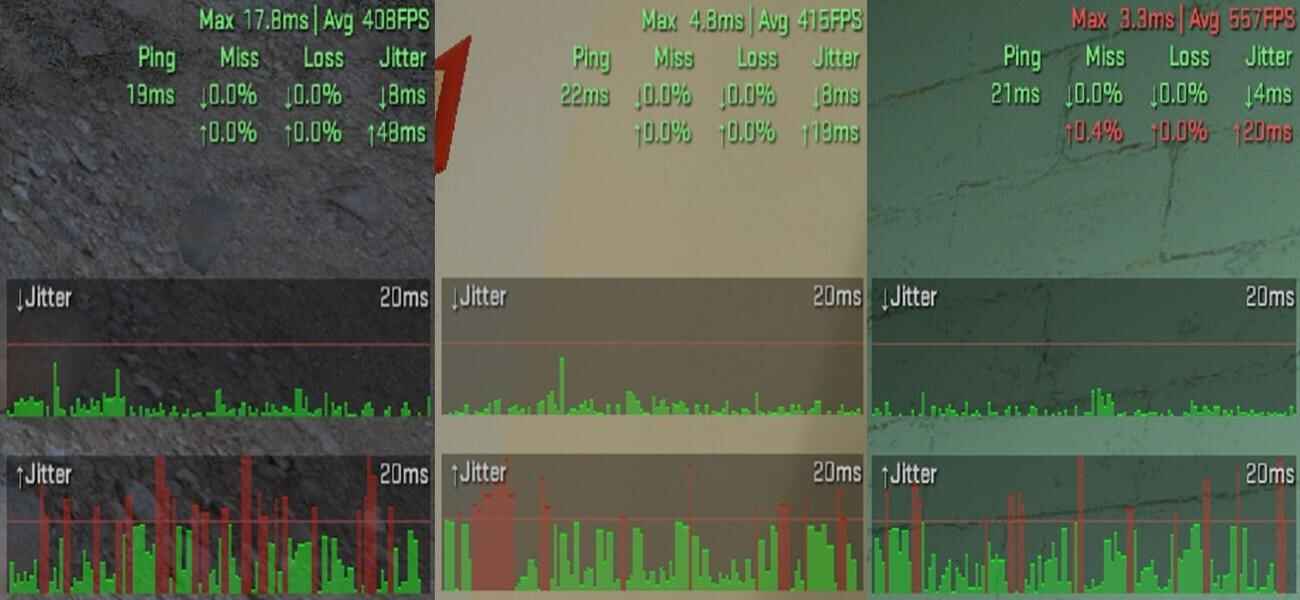
CS2's built-in Telemetry system is another useful option for monitoring your performance. Unlike a basic FPS counter, Telemetry can display additional information that helps you understand why your game might feel choppy or unresponsive.
To enable it:
- Open Settings and navigate to the Game tab.
- Find the Telemetry section.
- Locate the Frame Time or FPS-related options and set the relevant display to Always.
Depending on the options you enable, the Telemetry HUD can show your FPS, frame times, and network-related information, helping you identify potential performance issues.
For example, if your FPS looks high but the game still feels stuttery, frame-time information can help you spot inconsistent frame delivery. Network statistics can also help you investigate connection-related problems that might otherwise feel like performance issues.
Telemetry is a good choice if you want more insight into your game's performance rather than just a single FPS number.
Steam FPS Counter

Steam has its own built-in FPS counter, so you can monitor your frame rate without changing any CS2 settings or using console commands.
Here's how to enable it:
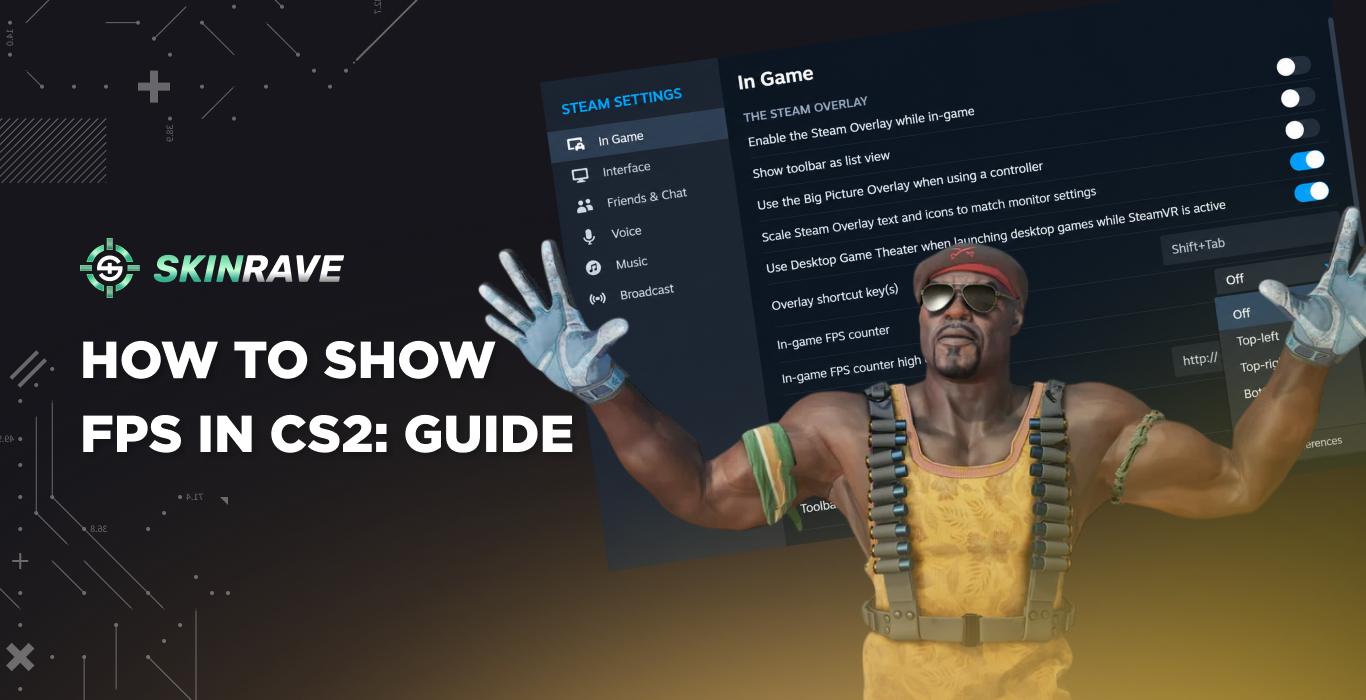
- Open Steam and click Steam → Settings.
- Select the In Game section.
- Find the Show performance monitor option and choose where you want the FPS counter to be.
- In Performance detail level, choose which options you want to see.
- Launch CS2 to see your FPS while playing.
Steam's FPS counter is a convenient option if you prefer a simple overlay that works independently of the game's developer console. It's particularly useful if you want to keep track of your frame rate without displaying additional performance statistics.
Use The AMD or Nvidia Software
If you have an Nvidia or AMD graphics card, there is an option that you could use from the manufacturer’s performance overlay.
NVIDIA Graphics Cards
If you're using an NVIDIA GPU, you can enable the performance overlay through the NVIDIA app or its supported in-game overlay.
- Open the NVIDIA overlay, typically using Alt + Z if the default shortcut is enabled.
- Open the performance or statistics section.
- Enable the FPS counter or performance statistics.
- Return to CS2 and check that the overlay is visible.
The exact menu names and available statistics may vary depending on your NVIDIA software version and configuration.
AMD Graphics Cards
For AMD GPUs, you'll need AMD Software: Adrenalin Edition installed on your PC.
- Open AMD Software: Adrenalin Edition.
- Go to Settings → Preferences and make sure the In-Game Overlay is enabled, if available.
- Open the Performance section and navigate to Metrics.
- Enable the FPS metric and select any additional statistics you want to monitor, such as GPU temperature, utilization, or frame time.
Once enabled, the overlay lets you check your system's performance while playing CS2.
These manufacturer overlays are particularly useful if you're troubleshooting performance problems or want to see how your graphics card behaves during a match. However, if all you need is a simple FPS counter, the console or Steam method is usually more than enough.
FAQs
How to key-bind to show fps?
With a simple bind command, you can switch your FPS counter on and off. Just type bind "KEY" toggle "cl_showfps", and that's it.
How to Show FPS in CS2?
You can do that by using the show FPS command in CS2. Open the console and enter cl_showfps 1. This will display your current FPS on screen.
How to set FPS in CS2?
Use fps_max [number] in the console. For example, fps_max 300 limits your FPS to 300. Use fps_max 0 to remove the FPS limit.
What is the CS2 command to check FPS and ping?
Use cl_showfps 2 to display FPS and additional performance information. For a more detailed view including ping and network data, enable the Telemetry HUD through Settings → Game → Telemetry.
How to turn off show FPS command in CS2?
Open the console and type cl_showfps 0. This removes the FPS counter from your screen.
How can I increase my FPS in CS2?
Lower demanding graphics settings, close unnecessary background applications, update your GPU drivers, and make sure CS2 is using your dedicated GPU. Lowering settings such as shadows, ambient occlusion, shaders, and MSAA can provide a noticeable FPS boost as well.